## Screenshot: PyAutoGUI Automation Workflow
### Overview
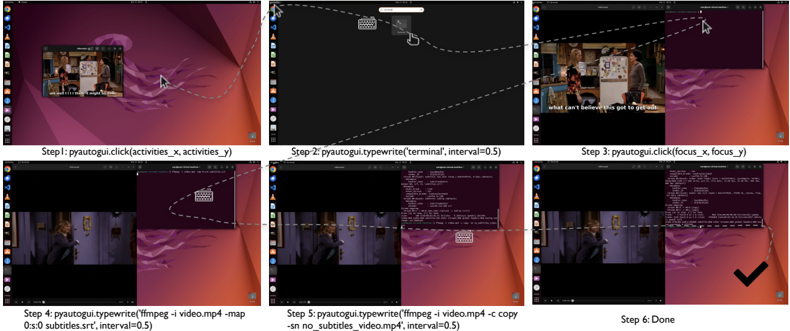
The image depicts a six-step tutorial demonstrating the automation of video file processing using PyAutoGUI. It shows sequential actions (clicking, typing, file operations) paired with visual representations of a computer desktop interface. The workflow culminates in a completed task marked with a checkmark.
### Components/Axes
1. **Step 1**: `pyautogui.click(activities_x, activities_y)`
- Visual: Arrow pointing to a video player window with a purple/orange desktop background.
2. **Step 2**: `pyautogui.typewrite('terminal', interval=0.5)`
- Visual: Terminal window opening with a black background and white text.
3. **Step 3**: `pyautogui.click(focus_x, focus_y)`
- Visual: Arrow targeting a specific area of the terminal window.
4. **Step 4**: `pyautogui.typewrite('ffmpeg -i video.mp4 -map 0:s:0 subtitles.srt', interval=0.5)`
- Visual: Terminal command input with a purple desktop background.
5. **Step 5**: `pyautogui.typewrite('-sn no_subtitles_video.mp4', interval=0.5)`
- Visual: Terminal command continuation with file path output.
6. **Step 6**: "Done" (black checkmark)
- Visual: Final panel showing completed task with a checkmark overlay.
### Detailed Analysis
- **Step 1**: Simulates a mouse click at coordinates `(activities_x, activities_y)` to open a video player.
- **Step 2**: Types "terminal" into a search bar with a 0.5-second delay between keystrokes.
- **Step 3**: Focuses on the terminal window via coordinates `(focus_x, focus_y)`.
- **Step 4**: Executes an `ffmpeg` command to extract subtitles from `video.mp4`, saving them as `subtitles.srt`.
- **Step 5**: Modifies the original video file to remove subtitles, saving it as `no_subtitles_video.mp4`.
- **Step 6**: Marks task completion with a checkmark, indicating successful automation.
### Key Observations
- **Automation Flow**: The process automates repetitive tasks (opening apps, typing commands, file manipulation) using PyAutoGUI.
- **Precision**: Coordinates `(activities_x, activities_y)` and `(focus_x, focus_y)` suggest pixel-level targeting for GUI interactions.
- **Command Structure**: The `ffmpeg` command demonstrates video processing capabilities (subtitle extraction and removal).
- **Interval Parameter**: Consistent `interval=0.5` ensures human-like typing speed to avoid automation detection.
### Interpretation
This workflow illustrates how PyAutoGUI can automate GUI-based tasks, such as video processing, by simulating human interactions. The use of `ffmpeg` highlights integration with command-line tools for advanced media manipulation. The step-by-step visual guidance emphasizes the importance of precise coordinate targeting and timing in automation scripts. The final checkmark symbolizes the successful completion of a task that would otherwise require manual intervention, showcasing efficiency gains through scripting.