## Screenshot: Group Email Agent Instance Review
### Overview
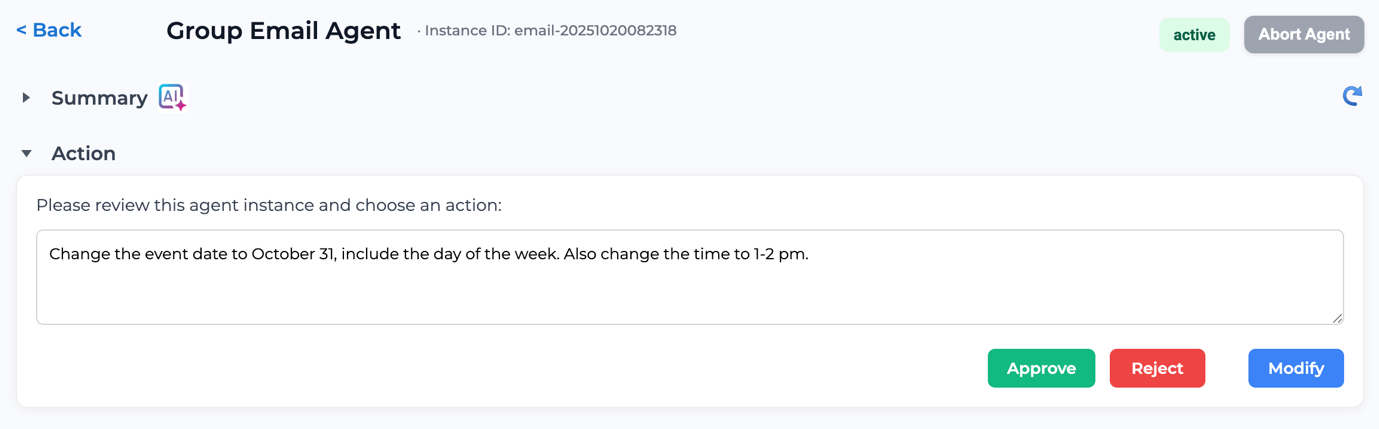
This image is a screenshot of a web application interface displaying the details of a "Group Email Agent" instance. The interface provides information about the agent, its current status, and presents a user with an action to review and respond to a proposed change. It features a header with navigation and agent status, collapsible sections for "Summary" and "Action", and a set of action buttons at the bottom.
### Components/Axes
The interface is structured into distinct regions:
* **Header (Top Bar):**
* **Navigation Link (Top-left):** A blue text link "< Back".
* **Page Title (Top-center):** "Group Email Agent".
* **Instance Identifier (Top-center, right of title):** "Instance ID: email-20251020082318".
* **Status Badge (Top-right):** A light green rectangular badge with rounded corners, labeled "active".
* **Action Button (Top-right):** A grey rectangular button with rounded corners, labeled "Abort Agent".
* **Main Content Area:**
* **Summary Section Header (Left, below header):** A right-pointing triangle icon (indicating a collapsed section) followed by the text "Summary". To the right of "Summary", there is an icon depicting "AI" with sparkles.
* **Refresh Icon (Far right, aligned with Summary):** A circular arrow icon, typically used for refreshing content.
* **Action Section Header (Left, below Summary):** A down-pointing triangle icon (indicating an expanded section) followed by the text "Action".
* **Action Card (Central, within the expanded Action section):**
* **Instructional Text:** "Please review this agent instance and choose an action:".
* **Text Input Field (Textarea):** A large, multi-line text box with a light grey border. It contains the following text: "Change the event date to October 31, include the day of the week. Also change the time to 1-2 pm." A small diagonal gripper in the bottom-right corner indicates it is a resizable text area.
* **Action Buttons (Bottom-right of the Action Card):**
* **Approve Button:** A green rectangular button with rounded corners, labeled "Approve".
* **Reject Button:** A red rectangular button with rounded corners, labeled "Reject".
* **Modify Button:** A blue rectangular button with rounded corners, labeled "Modify".
### Content Details
The primary content is a request for user action regarding an email agent.
The agent's instance ID is `email-20251020082318` and its current status is `active`.
The "Summary" section is collapsed, suggesting that detailed information about the agent's overall status or configuration is hidden but accessible. The presence of an "AI" icon next to "Summary" suggests that the agent might be AI-powered or that the summary itself is AI-generated.
The "Action" section is expanded, presenting a specific task to the user. The task involves reviewing a proposed change to the agent's schedule or event details. The proposed change is: "Change the event date to October 31, include the day of the week. Also change the time to 1-2 pm."
The user is given three explicit choices to respond to this proposed change: "Approve", "Reject", or "Modify".
### Key Observations
* The UI is clean and uses standard web application design patterns (e.g., breadcrumbs/back links, status badges, action buttons, collapsible sections).
* The "active" status and "Abort Agent" button suggest real-time operation and control over the agent.
* The "Summary" section being collapsed by default, while "Action" is expanded, indicates that the immediate user focus is on the pending action rather than a general overview.
* The "AI" icon next to "Summary" is a notable visual cue, hinting at advanced capabilities of the "Group Email Agent".
* The text in the action field is a natural language instruction, implying that the agent or system can interpret and act upon such instructions.
### Interpretation
This interface appears to be part of a system designed for managing automated "Group Email Agents," possibly for scheduling, sending, or processing emails. The "Instance ID" suggests that multiple such agents or instances can exist. The "active" status indicates that this particular agent is currently running.
The core purpose of this specific screen is to facilitate human oversight and decision-making for an agent's proposed actions or changes. The agent has generated a request or identified a need to "Change the event date to October 31, include the day of the week. Also change the time to 1-2 pm." This implies the agent has some level of autonomy or intelligence (reinforced by the "AI" icon) to propose modifications to its own operational parameters, likely based on new information or a predefined goal.
The user's role is to act as a gatekeeper or supervisor, reviewing the agent's proposal. The "Approve," "Reject," and "Modify" options provide a clear workflow:
* **Approve:** The user agrees with the proposed change, and the agent's parameters would likely be updated accordingly.
* **Reject:** The user disagrees, and the proposed change would be discarded.
* **Modify:** The user wants to adjust the proposed change, suggesting that the text field might become editable or lead to another interface for making alterations before final approval.
The "Abort Agent" button in the header serves as an emergency stop or termination option, indicating that the agent's operations can be halted at any time. The refresh icon suggests that the agent's status or pending actions might update dynamically. Overall, the system seems to be designed for intelligent automation with a human-in-the-loop for critical decisions.