## Screenshot: Group Email Agent Interface
### Overview
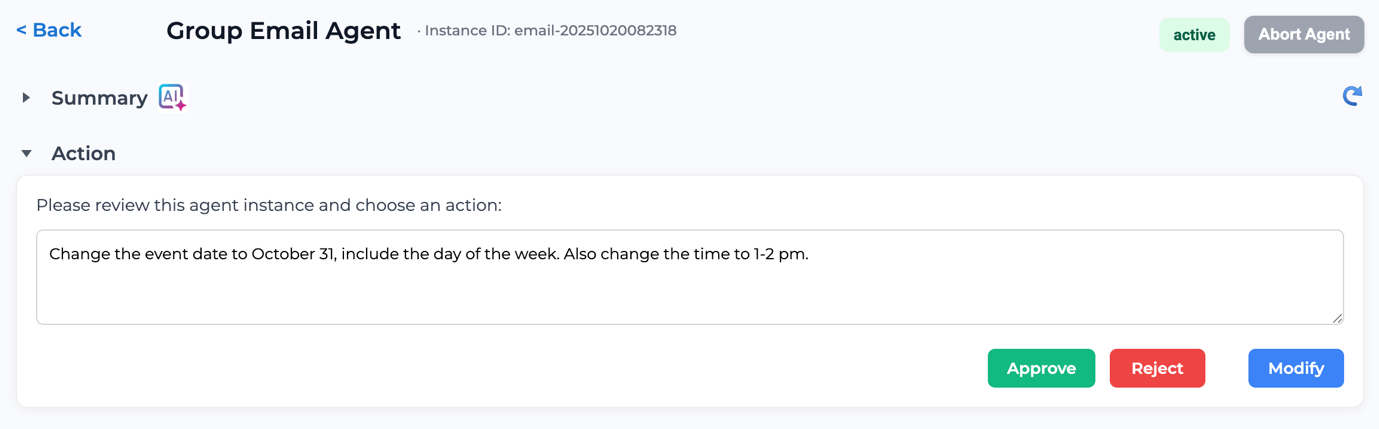
The image depicts a user interface for managing a "Group Email Agent" instance. The interface includes navigation controls, status indicators, a summary section with AI-assisted content, actionable instructions, and decision buttons. The layout is structured for administrative review and modification of email automation tasks.
### Components/Axes
1. **Header Section**:
- **Back Button**: Blue text with leftward arrow (top-left corner).
- **Title**: "Group Email Agent" in bold black text (center-left).
- **Instance ID**: `email-20251020082318` in gray text (right of title).
- **Status Indicators**:
- "active" in green text on a light green background (top-right).
- "Abort Agent" button in gray with white text (adjacent to status).
2. **Summary Section**:
- **Label**: "Summary" with downward arrow (left-aligned, below header).
- **AI Icon**: Purple square with "AI" text and a pink plus symbol (right of "Summary").
3. **Action Section**:
- **Label**: "Action" with downward arrow (left-aligned, below Summary).
- **Instruction Text Box**:
- Text: "Please review this agent instance and choose an action: Change the event date to October 31, include the day of the week. Also change the time to 1-2 pm."
- Positioned centrally, below the Action label.
4. **Action Buttons**:
- **Approve**: Green button with white text (bottom-center).
- **Reject**: Red button with white text (bottom-right).
- **Modify**: Blue button with white text (bottom-left).
5. **Additional Elements**:
- **Refresh Button**: Blue circular arrow (right of Summary section).
### Detailed Analysis
- **Textual Content**:
- The instruction text box specifies modifying an event to October 31 (day of the week unspecified) and adjusting the time to 1-2 PM.
- No numerical data or categorical labels are present beyond the Instance ID.
- **Spatial Grounding**:
- Header elements (Back, Title, Status) occupy the top 15% of the screen.
- Summary and Action sections are stacked vertically, occupying ~40% of the screen.
- Action buttons are aligned horizontally at the bottom 20% of the screen.
### Key Observations
- The interface is designed for administrative control, with clear visual hierarchy (bold titles, color-coded buttons).
- The AI icon suggests automated content generation or suggestions in the Summary section.
- The "active" status implies the agent is currently operational, while "Abort Agent" provides emergency termination.
### Interpretation
This interface likely belongs to an email automation system where agents handle scheduled group communications. The presence of AI-assisted content ("AI" icon) indicates machine learning integration for drafting or modifying emails. The three action buttons ("Approve," "Reject," "Modify") suggest a workflow where administrators validate or adjust AI-generated proposals before execution. The "active" status and abort functionality imply real-time monitoring capabilities, critical for time-sensitive email campaigns. The lack of numerical data suggests this is a configuration/review screen rather than a performance dashboard.