# Technical Document Extraction: GUI Automation Task Sequences
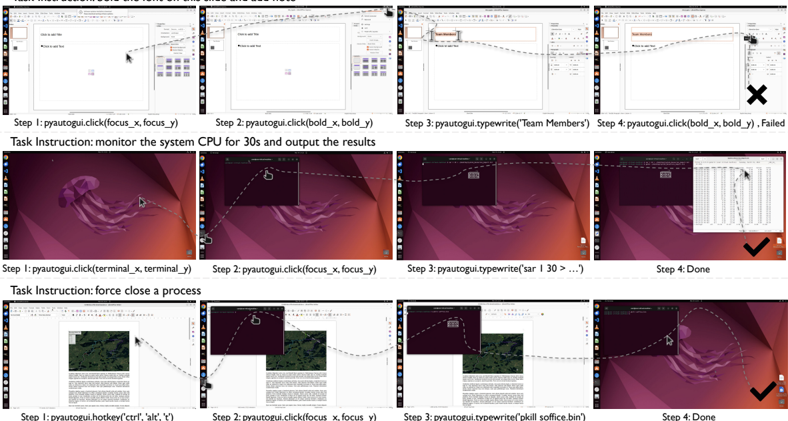
This document provides a detailed technical extraction of an image depicting three distinct task sequences for GUI automation using the `pyautogui` library on a Linux (Ubuntu) desktop environment.
---
## Overview
The image is organized into three horizontal rows, each representing a specific "Task Instruction." Each row contains four sequential screenshots (Steps 1-4) showing the mouse cursor path (indicated by dashed lines) and the corresponding Python code or status.
---
## Task 1: Bold the font on this slide and add text
**Objective:** Format text in a presentation software (LibreOffice Impress).
| Step | Action / Code | Visual Description |
| :--- | :--- | :--- |
| **Step 1** | `pyautogui.click(focus_x, focus_y)` | The cursor moves to the center of a blank slide containing "Click to add Title" and "Click to add Text" placeholders. |
| **Step 2** | `pyautogui.click(bold_x, bold_y)` | The cursor moves to the top toolbar, specifically targeting the "Bold" (B) icon. |
| **Step 3** | `pyautogui.typewrite('Team Members')` | The text "Team Members" is typed into the title placeholder. The text appears in red/brown. |
| **Step 4** | `pyautogui.click(bold_x, bold_y), Failed` | The cursor moves back to the toolbar. A large **"X"** icon indicates a failure in the sequence or expected outcome. |
---
## Task 2: Monitor the system CPU for 30s and output the results
**Objective:** Open a terminal and execute a system monitoring command.
| Step | Action / Code | Visual Description |
| :--- | :--- | :--- |
| **Step 1** | `pyautogui.click(terminal_x, terminal_y)` | The cursor moves to the Ubuntu sidebar (dock) to click the Terminal icon. |
| **Step 2** | `pyautogui.click(focus_x, focus_y)` | A terminal window opens; the cursor clicks inside the terminal to ensure it has focus. |
| **Step 3** | `pyautogui.typewrite('sar 1 30 > ...')` | The command `sar 1 30` (System Activity Report) is typed into the terminal. |
| **Step 4** | `Done` | A text file or terminal output window appears showing a table of CPU data. A large **Checkmark (✓)** indicates success. |
---
## Task 3: Force close a process
**Objective:** Use a terminal hotkey and command to terminate a running application.
| Step | Action / Code | Visual Description |
| :--- | :--- | :--- |
| **Step 1** | `pyautogui.hotkey('ctrl', 'alt', 't')` | The cursor is positioned over a document (LibreOffice Writer). The hotkey command is triggered to open a terminal. |
| **Step 2** | `pyautogui.click(focus_x, focus_y)` | A terminal window appears over the document; the cursor clicks the terminal to focus. |
| **Step 3** | `pyautogui.typewrite('pkill soffice.bin')` | The command `pkill soffice.bin` is typed to terminate the LibreOffice process. |
| **Step 4** | `Done` | The LibreOffice window disappears, leaving only the desktop wallpaper and the terminal. A large **Checkmark (✓)** indicates success. |
---
## Technical Components & Patterns
### 1. Software Environment
* **OS:** Ubuntu Linux (indicated by the "Jellyfish" wallpaper and sidebar).
* **Applications:** LibreOffice Impress (Task 1), GNOME Terminal (Tasks 2 & 3), LibreOffice Writer (Task 3).
### 2. Automation Logic (pyautogui)
* **Coordinate-based clicking:** Uses variables like `focus_x`, `bold_x`, and `terminal_y`, implying a predefined coordinate map.
* **String Injection:** Uses `.typewrite()` for entering CLI commands and document content.
* **Keyboard Shortcuts:** Uses `.hotkey()` for OS-level functions (opening terminal).
### 3. Visual Indicators
* **Dashed Lines:** Represent the spatial trajectory of the mouse cursor between steps.
* **Status Icons:**
* **X:** Represents a task failure or error state.
* **Checkmark (✓):** Represents a successfully completed task.