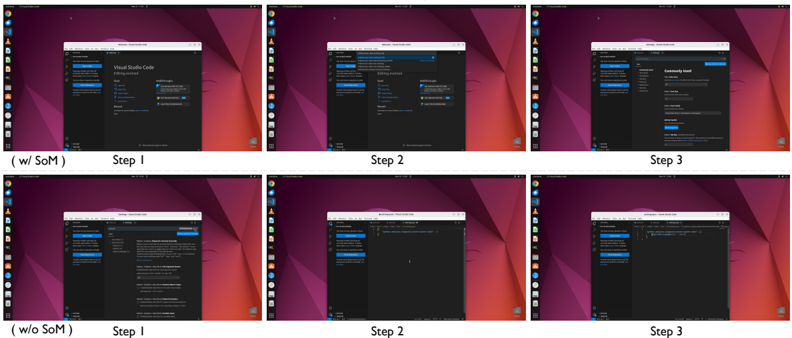
# Technical Document Extraction: Comparative Workflow Analysis
This document provides a detailed technical extraction of a comparative image showing two different workflows (labeled "w/ SoM" and "w/o SoM") within the Visual Studio Code (VS Code) environment on a Linux (Ubuntu) desktop.
## 1. Document Structure Overview
The image is organized into a 2x3 grid of screenshots, representing two distinct processes across three sequential steps.
* **Top Row:** Labeled **(w/ SoM)** - Steps 1, 2, and 3.
* **Bottom Row:** Labeled **(w/o SoM)** - Steps 1, 2, and 3.
* **Environment:** Ubuntu Desktop (GNOME), VS Code version with a dark theme.
---
## 2. Row 1: Workflow "(w/ SoM)"
This sequence demonstrates a user interacting with the VS Code Command Palette to navigate settings.
### Step 1: Initial State
* **Component:** VS Code "Welcome" tab.
* **Content:**
* **Header:** "Visual Studio Code - Editing evolved"
* **Start Section:** "New File...", "Open File...", "Open Folder...", "Clone Git Repository..."
* **Walkthroughs Section:** "Get Started with VS Code", "Learn the Fundamentals".
* **Recent Section:** Empty list.
* **Visual State:** The application is open, no specific action has been initiated.
### Step 2: Command Palette Interaction
* **Component:** Command Palette (Top-center overlay).
* **Action:** The user has typed into the search bar.
* **Extracted Text (Dropdown Menu):**
* `Preferences: Open User Settings` (Highlighted/Selected)
* `Preferences: Open User Settings (JSON)`
* `Preferences: Open Default Settings (JSON)`
* `Preferences: Open Workspace Settings`
* **Trend:** The user is using a keyboard-driven shortcut to access specific configuration menus.
### Step 3: Settings Interface
* **Component:** "Settings" tab.
* **Content:**
* **Search Bar:** "Search settings"
* **Sidebar Categories:** Common Used, Text Editor, Window, Features, Application, Extensions.
* **Main Panel:** "Commonly Used" section is visible.
* **Specific Setting:** "Editor: Tab Size" (Value: 4).
---
## 3. Row 2: Workflow "(w/o SoM)"
This sequence demonstrates a manual search and file editing process.
### Step 1: Extension/Marketplace Search
* **Component:** VS Code Sidebar (Extensions View) and Main Panel.
* **Action:** The user is searching for a specific tool or setting manually.
* **Extracted Text:**
* Search term in sidebar: `python`
* Main panel displays documentation or search results related to "Python" and "Analysis".
* Visible text snippets: "Python > Analysis: Diagnostic Severity Overrides", "Python > Analysis: Type Checking Mode".
### Step 2: File Creation/Editing
* **Component:** Code Editor.
* **Action:** A new file named `settings.json` (or similar) is opened.
* **Transcribed Code (JSON):**
```json
{
"python.analysis.diagnosticSeverityOverrides": {
"reportUnusedImport": "none"
}
}
```
* **Trend:** The user is manually typing configuration code into a JSON file rather than using the GUI settings menu.
### Step 3: Final Configuration
* **Component:** Code Editor.
* **Action:** The user has completed the manual entry.
* **Transcribed Code (JSON):**
```json
{
"python.analysis.diagnosticSeverityOverrides": {
"reportUnusedImport": "none"
},
"editor.fontSize": 14
}
```
* **Observation:** This workflow requires knowledge of specific syntax and property names.
---
## 4. Comparative Summary Table
| Feature | (w/ SoM) Workflow | (w/o SoM) Workflow |
| :--- | :--- | :--- |
| **Primary Interface** | Command Palette & GUI Settings | Extension Search & Manual JSON Editing |
| **Step 1 Action** | Open Welcome Page | Search for "Python" in Extensions/Docs |
| **Step 2 Action** | Search "Preferences: Open User Settings" | Manually open/create a JSON config file |
| **Step 3 Action** | Adjust "Tab Size" via UI | Manually type `reportUnusedImport` and `fontSize` |
| **User Experience** | Guided, menu-driven | Manual, syntax-dependent |
## 5. Spatial Grounding & Component Isolation
* **Header Region:** Consistent across all images; shows the Ubuntu top bar with time (approx. 11:30) and system icons.
* **Sidebar Region [Left]:** Contains the Activity Bar with icons for Explorer, Search, Source Control, Run/Debug, and Extensions.
* **Main Content Region [Center]:** Transitions from Welcome screen -> Settings/Search -> Editor.
* **Footer Region [Bottom]:** VS Code Status Bar (Blue), showing branch info and notification icons.