## Screenshot Analysis: Software Development Workflow Comparison
### Overview
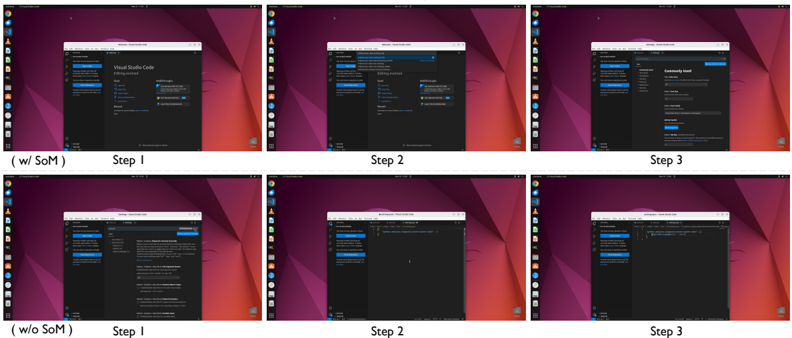
The image contains six screenshots arranged in two rows, comparing a software development workflow with and without "SoM" (likely an acronym for a specific tool or methodology). Each row represents a scenario:
- **Top Row**: Workflow "with SoM"
- **Bottom Row**: Workflow "without SoM"
Each row is divided into three steps (Step 1, Step 2, Step 3), showing browser windows with dark-themed interfaces. Text within the browser tabs is too small to read precisely, but structural differences between the two scenarios are evident.
### Components/Axes
- **Labels**:
- "w/ SoM" (with SoM) and "w/o SoM" (without SoM) annotations.
- Step labels: "Step 1", "Step 2", "Step 3" for each row.
- **UI Elements**:
- Browser windows with dark-themed interfaces.
- Tabs labeled (unreadable due to resolution).
- Sidebar menus with blue buttons (unreadable text).
### Detailed Analysis
#### With SoM (Top Row)
- **Step 1**:
- Browser tab labeled "Visual Studio Code" (inferred from context).
- Sidebar menu with blue buttons (text unreadable).
- **Step 2**:
- Browser tab labeled "Settings" (inferred).
- Sidebar menu with additional blue buttons (text unreadable).
- **Step 3**:
- Browser tab labeled "Community" (inferred).
- Sidebar menu with expanded options (text unreadable).
#### Without SoM (Bottom Row)
- **Step 1**:
- Browser tab labeled "Visual Studio Code" (same as top row).
- Sidebar menu with fewer blue buttons (simplified interface).
- **Step 2**:
- Browser tab labeled "Settings" (same as top row).
- Sidebar menu with reduced options (simplified interface).
- **Step 3**:
- Browser tab labeled "Community" (same as top row).
- Sidebar menu with minimal options (simplified interface).
### Key Observations
1. **Interface Complexity**:
- The "with SoM" workflow shows more detailed sidebar menus and additional blue buttons, suggesting enhanced functionality or configuration options.
- The "without SoM" workflow has a streamlined interface with fewer visible options.
2. **Tab Consistency**:
- Tab labels (e.g., "Visual Studio Code," "Settings," "Community") are identical in both scenarios, indicating the core workflow remains unchanged.
3. **Sidebar Differences**:
- The "with SoM" sidebar appears more populated, implying additional tools or settings are accessible.
### Interpretation
The comparison highlights the impact of "SoM" on the software development workflow:
- **With SoM**: Likely provides advanced features, deeper configuration options, or integration with external tools (evidenced by the expanded sidebar menus).
- **Without SoM**: Offers a simplified interface, possibly for users prioritizing ease of use over advanced functionality.
- **Workflow Implications**:
- Step 1 (Visual Studio Code) suggests code editing/debugging.
- Step 2 (Settings) implies configuration adjustments.
- Step 3 (Community) may involve collaboration or resource sharing.
- **Unreadable Text**: The inability to read specific button labels or menu items limits precise analysis of SoM’s exact contributions.
### Limitations
- Text within browser tabs and sidebar menus is too small to transcribe accurately.
- No numerical data or charts are present to quantify differences between scenarios.
- Assumptions about tab labels (e.g., "Visual Studio Code") are based on contextual inference.