## Screenshot: Web-Based Annotation Interface for Object Detection
### Overview
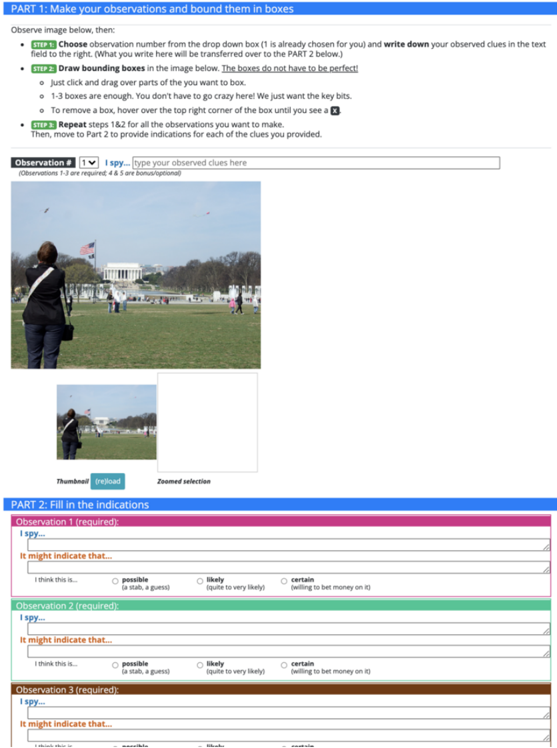
The image depicts a web interface for a multi-step annotation task involving object detection and contextual analysis. The interface is divided into two primary sections: **Part 1** (observation and bounding box creation) and **Part 2** (contextual indication filling). The example image shows a person flying a kite in a park with the Lincoln Memorial in the background.
---
### Components/Axes
#### Part 1: Make Your Observations and Bound Them in Boxes
- **Instructional Text**:
- "Observe image below, then:"
- Step 1: Choose observation number from dropdown (default: 1) and write observed clues in text field.
- Step 2: Draw bounding boxes by clicking/dragging; 1-3 boxes allowed. Remove boxes via "x" in corner.
- Step 3: Repeat steps 1-2 for additional observations.
- **UI Elements**:
- Dropdown labeled "Observation #" (options: 1-5, with 1 pre-selected).
- Text field labeled "I spy..." for observed clues.
- Example image thumbnail (kite-flying scene) with zoom selection tool.
- "Reload" button for image refresh.
#### Part 2: Fill in the Indications
- **Observation 1 (Required)**:
- Header: Pink background with "Observation 1 (required)".
- Fields:
- "I spy..." (text input).
- "It might indicate that..." (text input).
- Certainty radio buttons: "possible," "likely," "certain" (with "possible" pre-selected).
- **Observation 2 (Required)**:
- Header: Teal background with "Observation 2 (required)".
- Identical structure to Observation 1.
- **Observation 3 (Required)**:
- Header: Brown background with "Observation 3 (required)".
- Identical structure to Observation 1.
- **Footer Note**: "Observations 1-3 are required; 4 & 5 are bonus/optional."
---
### Detailed Analysis
#### Part 1
- **Image Example**:
- Scene: Outdoor park with grass, trees, and the Lincoln Memorial (white neoclassical building with columns) in the background.
- Foreground: Person (back to camera) wearing dark jacket and jeans, holding a kite string. Two kites visible in the sky.
- Additional elements: American flag on a pole, distant pedestrians, and a clear blue sky.
- **Bounding Box Instructions**: Users must manually draw boxes around key objects (e.g., person, kite, monument) using click-and-drag. Boxes are not required to be perfect.
#### Part 2
- **Contextual Analysis Fields**:
- Each observation requires a textual description of the observed object ("I spy...") and a hypothesis about its contextual significance ("It might indicate that...").
- Certainty levels ("possible," "likely," "certain") suggest a probabilistic framework for annotations, likely for training machine learning models.
---
### Key Observations
1. **Structured Annotation Workflow**: The task enforces a strict sequence: observe → box → contextualize.
2. **Certainty Calibration**: The inclusion of "possible/likely/certain" options implies a need for confidence scoring in annotations.
3. **Bonus Observations**: Optional fields (4 & 5) suggest flexibility for advanced users or additional data collection.
4. **Example Image Complexity**: The kite-flying scene includes multiple overlapping elements (person, kite, monument, flag), testing the annotator’s ability to isolate key objects.
---
### Interpretation
This interface is designed for **computer vision training**, where annotators label objects (via bounding boxes) and infer contextual relationships (via text). The certainty levels ("possible/likely/certain") may map to confidence scores in a machine learning pipeline. The example image’s complexity (multiple objects, background elements) highlights the challenge of distinguishing foreground vs. background in real-world scenarios. The structured workflow ensures consistency in data collection, critical for model training. The "I spy..." and "It might indicate that..." fields bridge visual and semantic understanding, enabling models to learn both object recognition and contextual reasoning.