## Screenshot: Linux Desktop with LibreOffice Calc and Accessibility Explorer
### Overview
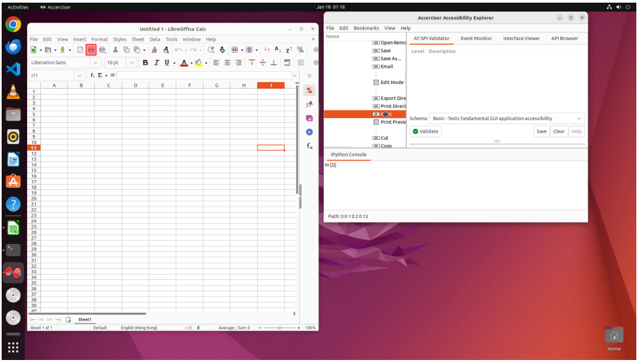
The image depicts a Linux desktop environment with two primary windows open:
1. **LibreOffice Calc** (spreadsheet application) on the left, displaying a grid of cells with specific highlights.
2. **Accessibility Explorer** (GUI testing tool) on the right, showing a list of accessibility validation tools and a highlighted item.
The desktop background features a gradient of purple and orange, with system icons visible on the left panel.
---
### Components/Axes
#### LibreOffice Calc Window
- **Grid Structure**:
- Columns labeled **A–H** (horizontal axis).
- Rows numbered **1–36** (vertical axis).
- **Highlighted Cells**:
- **A11**, **A12**, and **H12** are marked in **orange**.
- **Toolbar**:
- Standard menu options: **File, Edit, View, Window, Help**.
- Formatting tools: **Font, Alignment, Borders, Fill, Number Formats**.
- View options: **Sheet, Tools, Window, Help**.
#### Accessibility Explorer Window
- **List of Tools**:
- **AF SPI Validator**
- **Event Monitor**
- **Interface Viewer**
- **API Browser**
- **Highlighted Item**:
- **"Export Dir"** is marked in **orange**.
- **Status Indicators**:
- **"iPhone Console"** has a **green checkmark** (likely indicating validation success or active status).
- **Buttons**:
- **Save**, **Clear**, **Help** (bottom-right corner).
#### Desktop Environment
- **Icons**:
- Firefox, Terminal, File Manager, and other system applications.
- **Taskbar**:
- Located at the bottom-left corner with a grid menu (nine dots).
---
### Detailed Analysis
#### LibreOffice Calc
- **Highlighted Cells**:
- **A11** and **A12** (column A, rows 11–12) and **H12** (column H, row 12) are emphasized, suggesting active data entry or selection.
- **Toolbar Functionality**:
- The presence of **Font** and **Number Formats** tools indicates potential data formatting or validation tasks.
#### Accessibility Explorer
- **Highlighted "Export Dir"**:
- Likely a selected directory for exporting test results or configurations.
- **Green Checkmark on "iPhone Console"**:
- Implies successful validation or active connection to an iOS accessibility testing framework.
#### Desktop Layout
- **Icon Placement**:
- System icons are aligned vertically on the left panel, adhering to typical Linux desktop conventions.
---
### Key Observations
1. **Focus on Data Validation**:
- The combination of LibreOffice Calc (data manipulation) and Accessibility Explorer (GUI testing) suggests the user is engaged in accessibility testing or data-driven analysis.
2. **Highlighted Elements**:
- Orange highlights in both windows indicate active selection or critical focus areas.
3. **Desktop Organization**:
- Minimal clutter, with only essential icons visible, prioritizing workflow efficiency.
---
### Interpretation
- **Workflow Context**:
- The user may be cross-referencing spreadsheet data (Calc) with accessibility validation results (Accessibility Explorer), possibly for a web or mobile application.
- **Highlighted Cells in Calc**:
- The orange-marked cells (A11, A12, H12) could represent input parameters, test cases, or validation thresholds.
- **Accessibility Explorer Status**:
- The green checkmark on "iPhone Console" implies successful validation of accessibility features for iOS devices, a critical step in ensuring compliance with standards like WCAG.
- **Desktop Environment**:
- The purple/orange gradient background and organized icons reflect a customized, productivity-focused setup.
This setup highlights a technical workflow integrating data analysis and accessibility testing, emphasizing precision and validation in software development or QA processes.