# Technical Document Extraction: ADP-MA Replay Mode Interface
## 1. Header Information
* **Application Name:** ADP-MA (Top left, accompanied by a purple 'MA' logo).
* **Operational Status:**
* **Live Mode:** Inactive (Grey text with radio icon).
* **Replay Mode:** Active (Highlighted blue button with refresh icon).
* **Utility Icons:** Document icon and GitHub logo (Top right).
## 2. Page Title and Description
* **Title:** Replay Mode
* **Description:** Replay previous pipeline executions to review or demonstrate.
## 3. Component Isolation
### Region A: Select Case to Replay (Left Sidebar)
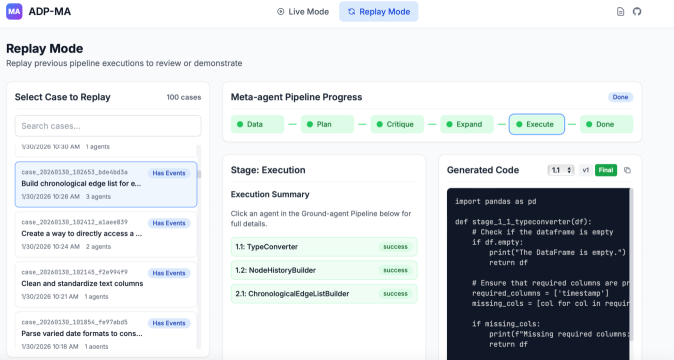
This section allows users to browse and select historical execution cases.
* **Total Count:** 100 cases.
* **Search Bar:** Placeholder text "Search cases...".
* **Case List Entries (Top 4 visible):**
1. **Selected Case:** `case_20260130_102653_bde4bd3a`
* **Description:** Build chronological edge list for e...
* **Timestamp:** 1/30/2026 10:26 AM
* **Metadata:** 3 agents | **Tag:** Has Events (Blue)
2. **Case:** `case_20260130_102412_a1aee839`
* **Description:** Create a way to directly access a ...
* **Timestamp:** 1/30/2026 10:24 AM
* **Metadata:** 2 agents | **Tag:** Has Events (Blue)
3. **Case:** `case_20260130_102145_f2e994f9`
* **Description:** Clean and standardize text columns
* **Timestamp:** 1/30/2026 10:21 AM
* **Metadata:** 1 agents | **Tag:** Has Events (Blue)
4. **Case:** `case_20260130_101854_fe97abd5`
* **Description:** Parse varied date formats to cons...
* **Timestamp:** 1/30/2026 10:18 AM
* **Metadata:** 1 agents | **Tag:** Has Events (Blue)
### Region B: Meta-agent Pipeline Progress (Top Center)
A horizontal flow diagram showing the high-level stages of the pipeline.
* **Overall Status:** Done (Blue badge).
* **Flow Components:**
1. **Data:** Green dot (Completed).
2. **Plan:** Green dot (Completed).
3. **Critique:** Green dot (Completed).
4. **Expand:** Green dot (Completed).
5. **Execute:** Green dot, highlighted with a blue border (Current focus/Active selection).
6. **Done:** Green dot (Completed).
### Region C: Stage: Execution (Bottom Center)
Details regarding the specific sub-agents running within the "Execute" stage.
* **Instruction:** "Click an agent in the Ground-agent Pipeline below for full details."
* **Execution Summary Table:**
| ID | Agent Name | Status |
| :--- | :--- | :--- |
| 1.1 | TypeConverter | success (Green badge) |
| 1.2 | NodeHistoryBuilder | success (Green badge) |
| 2.1 | ChronologicalEdgeListBuilder | success (Green badge) |
### Region D: Generated Code (Bottom Right)
A code block displaying the Python logic generated for the selected agent.
* **Controls:** Version selector (1.1), v1 toggle, "Final" status badge (Green), and a copy-to-clipboard icon.
* **Code Transcription:**
```python
import pandas as pd
def stage_1_1_typeconverter(df):
# Check if the dataframe is empty
if df.empty:
print("The DataFrame is empty.")
return df
# Ensure that required columns are pr
required_columns = ['timestamp']
missing_cols = [col for col in requir
if missing_cols:
print(f"Missing required columns:
return df
```
## 4. Visual Logic and Trend Summary
* **Workflow Status:** The pipeline is fully completed ("Done"). The user is currently inspecting the "Execute" stage of a case recorded on January 30, 2026.
* **Color Coding:**
* **Green:** Indicates successful completion of stages and agents.
* **Blue:** Indicates active selection (Replay Mode, the specific Case, and the "Execute" stage in the progress bar).
* **Data Integrity:** The interface shows a 1:1 mapping between the selected agent "1.1: TypeConverter" in the Execution Summary and the function name `stage_1_1_typeconverter` in the Generated Code block.