## Screenshot: L2Y Test Environment
### Overview
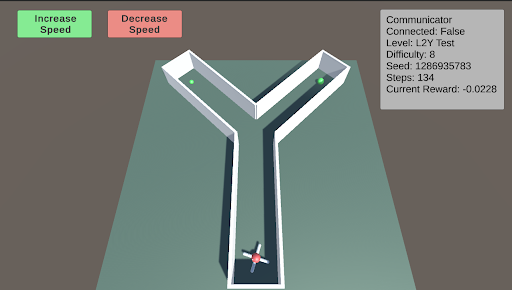
The image is a screenshot of a simulated environment, likely for reinforcement learning or robotics testing. It depicts a Y-shaped maze with a small robot at the bottom and two green spheres at the ends of the maze branches. The environment includes UI elements for controlling speed and displaying simulation parameters.
### Components/Axes
* **Environment:** A Y-shaped maze with white walls on a light green floor.
* **Robot:** A small, red and white robot located at the base of the Y.
* **Goals:** Two green spheres, one at the end of each branch of the Y.
* **UI Elements:**
* "Increase Speed" button (green) at the top-left.
* "Decrease Speed" button (red) at the top-center.
* "Communicator" information box at the top-right.
### Detailed Analysis
**Communicator Information Box (Top-Right):**
* **Communicator:** (Title)
* **Connected:** False
* **Level:** L2Y Test
* **Difficulty:** 8
* **Seed:** 1286935783
* **Steps:** 134
* **Current Reward:** -0.0228
**Buttons (Top-Left):**
* **Increase Speed:** Green button with the text "Increase Speed".
* **Decrease Speed:** Red button with the text "Decrease Speed".
**Maze:**
* The maze is Y-shaped with white walls.
* The floor is light green.
* Two green spheres are located at the end of each branch.
* The robot is at the base of the Y.
### Key Observations
* The simulation is not connected ("Connected: False").
* The robot has taken 134 steps.
* The current reward is negative (-0.0228), suggesting the robot has not yet reached a goal or is being penalized for actions.
### Interpretation
The image shows a reinforcement learning environment where a robot is navigating a Y-shaped maze. The goal is likely for the robot to reach one of the green spheres. The "Communicator" information box provides details about the simulation, including the level, difficulty, seed, steps taken, and current reward. The negative reward suggests the robot is still learning and has not yet optimized its path to the goal. The "Increase Speed" and "Decrease Speed" buttons allow the user to control the simulation speed, potentially for debugging or observation purposes.