## Screenshot Analysis: Step-by-Step Technical Instructions
### Overview
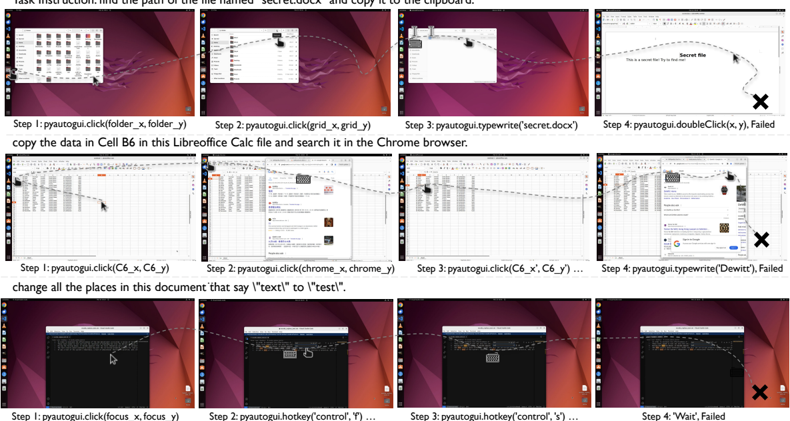
The image displays three rows of annotated screenshots demonstrating sequential technical tasks. Each row represents a distinct workflow with step-by-step instructions, UI interactions, and failure indicators. Arrows and text annotations guide the viewer through actions like file navigation, data search, and text replacement.
### Components/Axes
- **Layout**: Grid of 12 screenshots (3 rows × 4 columns) with consistent purple/red backgrounds.
- **Annotations**:
- Dashed arrows connecting UI elements (e.g., folders, files, search bars).
- Text labels specifying commands (e.g., "click", "typewrite", "hotkey").
- Failure markers: Black "X" symbols and "Failed" text in final steps.
- **UI Elements**:
- File explorer windows, Chrome browser tabs, LibreOffice Calc spreadsheets.
- Search bars, document text areas, and system dialogs.
### Detailed Analysis
#### Row 1: File Copy Task
1. **Step 1**: `pyautogui.click(folder_x, folder_y)`
- Action: Click folder icon in file explorer.
2. **Step 2**: `pyautogui.click(grid_x, grid_y)`
- Action: Navigate to grid view in file explorer.
3. **Step 3**: `pyautogui.typewrite('secret.docx')`
- Action: Type filename into search bar.
4. **Step 4**: `pyautogui.doubleClick(x, y)`
- **Failure**: Double-click action unsuccessful (marked with "X").
#### Row 2: Data Search Task
1. **Step 1**: `pyautogui.click(C6_x, C6_y)`
- Action: Select cell C6 in LibreOffice Calc.
2. **Step 2**: `pyautogui.click(chrome_x, chrome_y)`
- Action: Open Chrome browser tab.
3. **Step 3**: `pyautogui.typewrite('Dewitt')`
- Action: Search for "Dewitt" in browser.
4. **Step 4**: `pyautogui.typewrite('Dewitt')`
- **Failure**: Search yields no results (marked with "X").
#### Row 3: Text Replacement Task
1. **Step 1**: `pyautogui.click(focus_x, focus_y)`
- Action: Focus on document text area.
2. **Step 2**: `pyautogui.hotkey('control', 'f')`
- Action: Open find dialog (`Ctrl+F`).
3. **Step 3**: `pyautogui.hotkey('control', 's')`
- Action: Save document (unrelated to task).
4. **Step 4**: `Wait...`
- **Failure**: Task incomplete (marked with "X").
### Key Observations
- **Failure Patterns**: All rows end with Step 4 failures, suggesting incomplete automation scripts or incorrect coordinates.
- **Command Consistency**: `pyautogui` commands follow a logical sequence but lack error handling for failed interactions.
- **Annotation Clarity**: Arrows and labels effectively map actions to UI elements, though some steps (e.g., Step 3 in Row 3) deviate from the task.
### Interpretation
The image illustrates a tutorial for automating repetitive tasks using `pyautogui`, a Python library for GUI automation. The failures in Step 4 highlight potential issues:
1. **Coordinate Inaccuracy**: Double-click coordinates (`x, y`) may not align with the target file.
2. **Browser Search Limitations**: The "Dewitt" search returns no results, indicating either a typo or missing data.
3. **Misaligned Workflow**: Step 3 in Row 3 uses `Ctrl+S` (save) instead of text replacement, suggesting a script error.
This analysis underscores the importance of precise coordinate mapping and task-specific command sequencing in automation workflows. The failures serve as critical checkpoints for debugging and refining the script logic.