# Technical Document Extraction: Training Portal Interface
## 1. Component Isolation
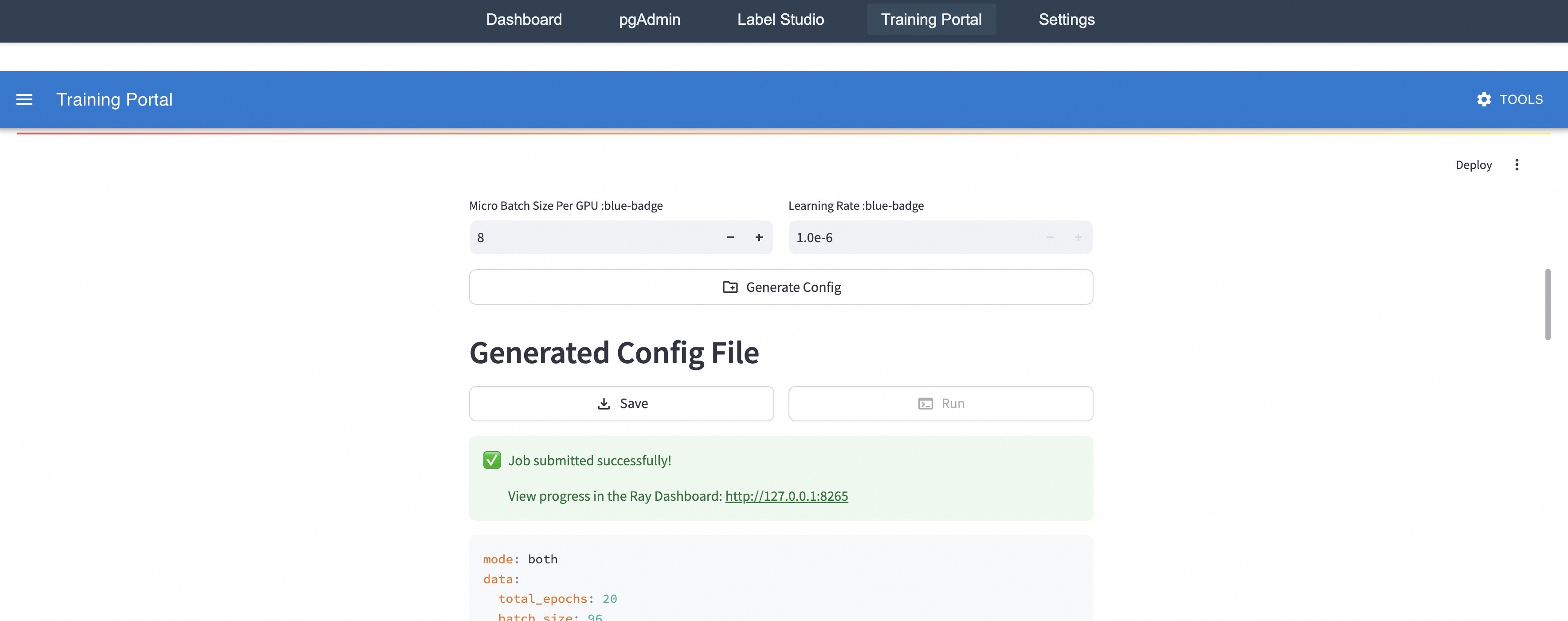
The image is a screenshot of a web-based machine learning "Training Portal" interface. It is segmented into the following regions:
* **Global Navigation Header:** Dark grey bar at the very top.
* **Application Header:** Blue bar with the application title and tools.
* **Configuration Input Section:** Area for setting hyperparameters.
* **Action & Status Section:** Buttons for file generation and job status notifications.
* **Configuration Preview (Partial):** A code block showing the generated YAML/JSON configuration.
---
## 2. Detailed Textual Extraction
### Region: Global Navigation Header
* **Dashboard**
* **pgAdmin**
* **Label Studio**
* **Training Portal** (Highlighted/Active state with a grey background box)
* **Settings**
### Region: Application Header
* **Menu Icon** (Three horizontal lines)
* **Training Portal** (Title)
* **TOOLS** (Accompanied by a gear icon)
### Region: Configuration Input Section
This section contains two numerical input fields with increment/decrement controls.
| Label | Current Value | Controls |
| :--- | :--- | :--- |
| Micro Batch Size Per GPU | 8 | `-` and `+` buttons |
| Learning Rate | 1.0e-6 | `-` and `+` buttons (greyed out/disabled) |
* **Button:** `[icon] Generate Config` (Centered below the inputs)
### Region: Action & Status Section
* **Sub-header:** Generated Config File
* **Secondary Navigation:** `Deploy` (Top right of this section), `[vertical ellipsis icon]`
* **Action Buttons:**
* `[download icon] Save` (Active)
* `[terminal icon] Run` (Inactive/Greyed out)
* **Status Notification (Green Box):**
* `[check mark icon] Job submitted successfully!`
* `View progress in the Ray Dashboard: http://127.0.0.1:8265`
### Region: Configuration Preview (Code Block)
The text is formatted as a structured configuration file (YAML style).
```yaml
mode: both
data:
total_epochs: 20
batch_size: 96
```
*(Note: The image cuts off after these lines.)*
---
## 3. Component Analysis and Flow
### System Workflow
1. **Input:** The user defines hyperparameters (Micro Batch Size and Learning Rate).
2. **Generation:** The user clicks "Generate Config" to create the configuration file displayed below.
3. **Execution:** Based on the green status box, the "Run" command (or an automated trigger) has been executed.
4. **Monitoring:** The system provides a local loopback URL (`http://127.0.0.1:8265`) to monitor the training progress via the Ray Dashboard.
### Visual Indicators
* **Active State:** The "Training Portal" tab in the top nav is highlighted.
* **Success State:** The green background and checkmark icon indicate a successful backend operation (job submission).
* **Interactive Elements:** The "Save" button is outlined and appears clickable, while the "Run" button is faded, suggesting the process is already running or the action is currently unavailable.
---
## 4. Language Declaration
The entire interface is in **English**. No other languages are present.