# Technical Document: Analysis of GUI Automation Task Sequences
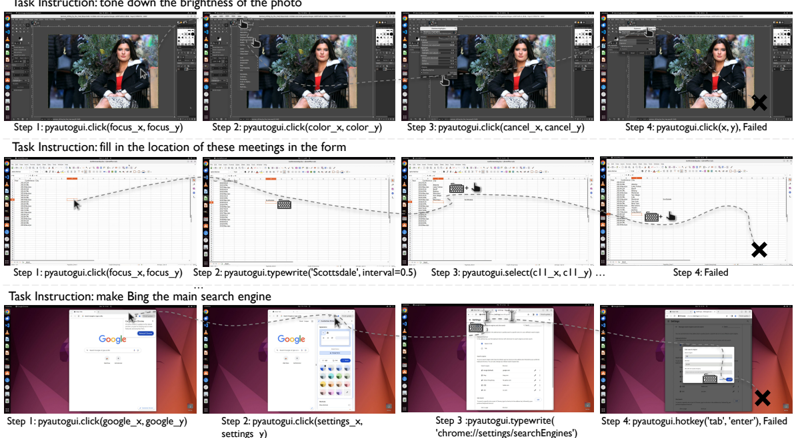
This document provides a detailed extraction and analysis of a technical image depicting three distinct GUI automation task sequences using the `pyautogui` library. Each sequence illustrates a "Task Instruction," a series of successful steps, and a final failed step marked with an "X".
---
## Layout Overview
The image is organized into three horizontal rows, each representing a unique automation scenario. Each row contains four sequential screenshots showing the state of the desktop environment and the corresponding Python command executed.
---
## Row 1: Photo Editing Task
**Task Instruction:** tone down the brightness of the photo
| Step | Action / Command | Visual Description |
| :--- | :--- | :--- |
| **Step 1** | `pyautogui.click(focus_x, focus_y)` | The cursor is positioned over a photo of a woman in a black jacket within a photo editing software (GIMP-like interface). |
| **Step 2** | `pyautogui.click(color_x, color_y)` | A dropdown menu is opened in the top navigation bar, specifically targeting the "Colors" menu. |
| **Step 3** | `pyautogui.click(cancel_x, cancel_y)` | A "Brightness-Contrast" dialog box is open. The cursor is clicking the "Cancel" button instead of adjusting settings. |
| **Step 4** | `pyautogui.click(x, y), Failed` | **Result: Failure.** A large black 'X' appears in the bottom right. The dialog box remains open, and the task is not completed. |
---
## Row 2: Spreadsheet Data Entry Task
**Task Instruction:** fill in the location of these meetings in the form
| Step | Action / Command | Visual Description |
| :--- | :--- | :--- |
| **Step 1** | `pyautogui.click(focus_x, focus_y)` | A spreadsheet application (LibreOffice Calc/Excel) is open. The cursor selects a specific cell in a column. |
| **Step 2** | `pyautogui.typewrite('Scottsdale', interval=0.5)` | A keyboard icon indicates text entry. The word "Scottsdale" is being typed into the selected cell. |
| **Step 3** | `pyautogui.select(c11_x, c11_y) ...` | The cursor moves to select a different range or cell within the spreadsheet. |
| **Step 4** | `Step 4: Failed` | **Result: Failure.** A large black 'X' appears over the spreadsheet. The dashed path indicates erratic cursor movement leading to the failure. |
---
## Row 3: Browser Configuration Task
**Task Instruction:** make Bing the main search engine
| Step | Action / Command | Visual Description |
| :--- | :--- | :--- |
| **Step 1** | `pyautogui.click(google_x, google_y)` | A web browser is open to the Google homepage. The cursor clicks on the browser's address bar or settings area. |
| **Step 2** | `pyautogui.click(settings_x, settings_y)` | The browser's side settings/customization panel is opened. |
| **Step 3** | `pyautogui.typewrite('chrome://settings/searchEngines')` | The keyboard icon indicates the automation is typing the direct URL for search engine settings into the address bar. |
| **Step 4** | `pyautogui.hotkey('tab', 'enter'), Failed` | **Result: Failure.** A settings dialog is visible, but a large black 'X' indicates the final hotkey sequence did not achieve the goal of switching to Bing. |
---
## Technical Components & Symbols
* **Dashed Lines:** Represent the spatial trajectory of the mouse cursor between steps.
* **Cursor Icon:** Indicates the `(x, y)` coordinate where a `click` or `select` action occurs.
* **Keyboard Icon:** Indicates a `typewrite` or `hotkey` action.
* **Black 'X':** Explicitly denotes the failure of the automation sequence at Step 4.
* **Programming Language:** All commands utilize the **Python** library `pyautogui`.
## Summary of Trends
Across all three examples, the automation successfully initiates the task and navigates the initial UI layers (Steps 1-3). However, in every instance, the sequence fails at **Step 4**, suggesting a breakdown in the logic required to finalize the specific objective (e.g., clicking "Cancel" instead of "OK", or failing to navigate a final confirmation dialog).