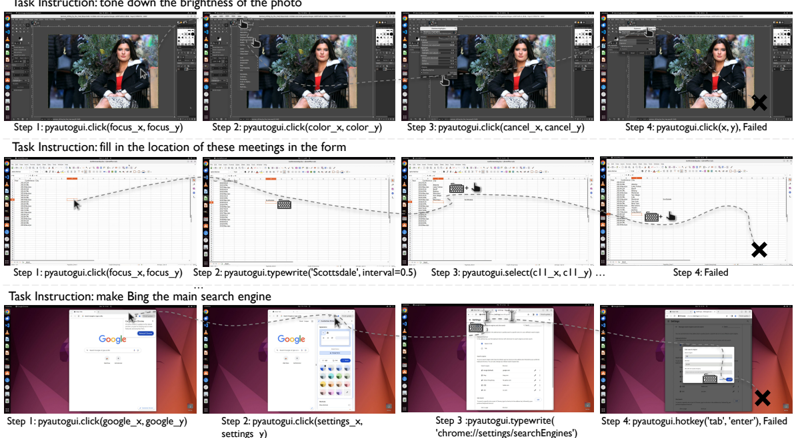
## Screenshot: Task Execution Demonstration with Step-by-Step Outcomes
### Overview
The image displays three sequential task demonstrations using a software automation tool (likely PyAutoGUI), showing successful actions and failure points. Each task includes four steps with visual feedback of executed commands and outcomes. The interface appears to be a code editor or automation scripting environment with a preview pane for visual results.
### Components/Axes
1. **Task Structure**:
- Three distinct task sections (Image Editing, Form Filling, Browser Configuration)
- Each task follows a 4-step format:
- Step 1: Initial action
- Step 2: Secondary action
- Step 3: Tertiary action
- Step 4: Final action (with failure indicator)
2. **Visual Elements**:
- Left column: Task instructions
- Middle column: Step-by-step visual progression
- Right column: Final outcome (success/failure)
- Failure indicators: Red 'X' marks and "Failed" text
3. **Command Syntax**:
- PyAutoGUI method calls with parameter placeholders:
- `click(focus_x, focus_y)`
- `typewrite('text')`
- `select(interval)`
- `hotkey('key')`
### Detailed Analysis
#### Task 1: Image Brightness Adjustment
1. **Step 1**: `pyautogui.click(focus_x, focus_y)`
- Action: Selects image editing tool
- Visual: Preview pane shows original image
2. **Step 2**: `pyautogui.click(color_x, color_y)`
- Action: Opens color adjustment panel
- Visual: Color picker interface appears
3. **Step 3**: `pyautogui.click(cancel_x, cancel_y)`
- Action: Abandons changes
- Visual: Image reverts to original state
4. **Step 4**: `pyautogui.click(x, y)`
- Failure: Incorrect coordinates
- Visual: Red 'X' and "Failed" text
#### Task 2: Meeting Location Form Filling
1. **Step 1**: `pyautogui.click(focus_x, focus_y)`
- Action: Selects form field
- Visual: Cursor positions at meeting location field
2. **Step 2**: `pyautogui.typewrite('Scottsdale', interval=0.5)`
- Action: Inputs location text
- Visual: Text appears in form field
3. **Step 3**: `pyautogui.select(11, x, 11, y)`
- Failure: Invalid selection parameters
- Visual: Selection tool misbehaves
4. **Step 4**: Final state
- Failure: Form remains incomplete
- Visual: Red 'X' and "Failed" text
#### Task 3: Bing Search Engine Configuration
1. **Step 1**: `pyautogui.click(google_x, google_y)`
- Action: Opens browser settings
- Visual: Google Chrome settings interface
2. **Step 2**: `pyautogui.click(settings_x, settings_y)`
- Action: Navigates to search engines
- Visual: Search engine settings panel
3. **Step 3**: `pyautogui.typewrite('chrome://settings/searchEngines')`
- Action: Inputs configuration command
- Visual: Command appears in address bar
4. **Step 4**: `pyautogui.hotkey('tab', 'enter')`
- Failure: Incorrect hotkey combination
- Visual: Settings window closes unexpectedly
- Red 'X' and "Failed" text
### Key Observations
1. **Failure Patterns**:
- All failures occur in Step 4
- Common issues: Incorrect coordinates, invalid parameters, wrong hotkey combinations
- Visual feedback: Consistent use of red 'X' and "Failed" text
2. **Command Syntax**:
- Parameters use placeholder variables (x, y, focus_x, etc.)
- Interval timing specified in milliseconds (0.5s typing delay)
3. **Interface Design**:
- Preview pane maintains consistent position across tasks
- Failure indicators use standardized visual language
- Command syntax follows Python-like structure
### Interpretation
This image demonstrates a technical workflow for automating repetitive tasks using PyAutoGUI. The consistent failure patterns suggest:
1. **Parameter Sensitivity**: Small coordinate errors (e.g., x vs. focus_x) cause failures
2. **Command Precision**: Exact syntax requirements (e.g., hotkey combinations)
3. **Interface Navigation**: Importance of correct element targeting in UI automation
The demonstration serves as both a tutorial and quality assurance tool, highlighting common pitfalls in automation scripting. The visual progression allows users to:
- Understand successful workflow execution
- Identify failure points through comparative analysis
- Learn proper parameter usage through contextual examples
The structured format enables reproducible learning, with each task building on fundamental automation principles while introducing new command types (click, typewrite, select, hotkey).