TECHNICAL ASSET FINGERPRINT
2f082f3cce00b38cb07f2043
Click to view fullscreen
Press ESC or click to close
FOUND IN PAPERS
EXPERT: healer-alpha-free VERSION 1
RUNTIME: free/openrouter/healer-alpha
INTEL_VERIFIED
\n
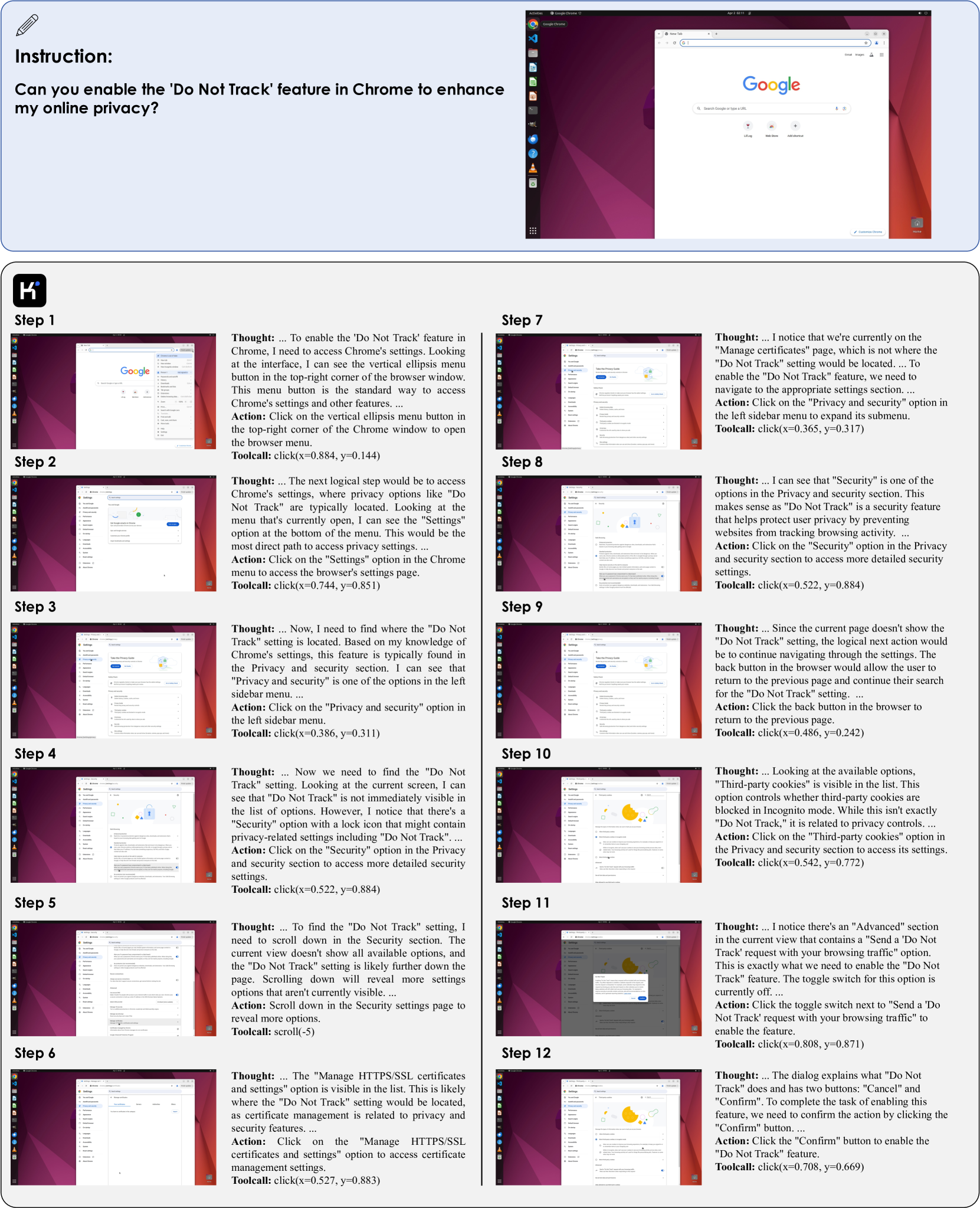
## Screenshot: Step-by-Step Guide to Enabling 'Do Not Track' in Chrome
### Overview
The image is a composite instructional graphic detailing a 12-step process for enabling the "Do Not Track" feature in the Google Chrome web browser. It consists of a header with the main instruction and a two-column layout below containing numbered steps. Each step includes a screenshot of the Chrome interface, a "Thought" paragraph explaining the reasoning, an "Action" instruction, and a "Toolcall" with precise click coordinates or a scroll command.
### Components/Axes
The image is segmented into two primary regions:
1. **Header (Top Section):** Contains a pencil icon and the primary user instruction.
2. **Instructional Steps (Bottom Section):** A grid of 12 steps, arranged in two columns (Steps 1-6 on the left, Steps 7-12 on the right). Each step is a self-contained block with a screenshot and associated text.
**Textual Elements Present:**
* **Header Instruction:** "Instruction: Can you enable the 'Do Not Track' feature in Chrome to enhance my online privacy?"
* **Step Labels:** "Step 1" through "Step 12".
* **Thought Process Text:** Detailed reasoning for each action.
* **Action Instructions:** Direct commands for what to click or do.
* **Toolcall Commands:** Programmatic actions with `click(x=..., y=...)` or `scroll(...)` parameters.
* **UI Text in Screenshots:** Visible text within the Chrome browser interface, including menu items ("Settings", "Privacy and security", "Security", "Third-party cookies", "Manage HTTPS/SSL certificates and settings", "Send a 'Do Not Track' request with your browsing traffic"), button labels ("Cancel", "Confirm"), and the "Advanced" section header.
### Detailed Analysis
The process navigates through Chrome's settings hierarchy. The following is a complete transcription of the instructional text for each step.
**Step 1**
* **Thought:** ... To enable the 'Do Not Track' feature in Chrome, I need to access Chrome's settings. Looking at the interface, I can see the vertical ellipsis menu button in the top-right corner of the browser window. This menu button is the standard way to access Chrome's settings and other features. ...
* **Action:** Click on the vertical ellipsis menu button in the top-right corner of the Chrome window to open the browser menu.
* **Toolcall:** `click(x=0.884, y=0.144)`
**Step 2**
* **Thought:** ... The next logical step would be to access Chrome's settings, where privacy options like "Do Not Track" are typically located. Looking at the menu that's currently open, I can see the "Settings" option at the bottom of the menu. This would be the most direct path to access privacy settings. ...
* **Action:** Click on the "Settings" option in the Chrome menu to access the browser's settings page.
* **Toolcall:** `click(x=0.744, y=0.851)`
**Step 3**
* **Thought:** ... Now, I need to find where the "Do Not Track" setting is located. Based on my knowledge of Chrome's settings, this feature is typically found in the Privacy and security section. I can see that "Privacy and security" is one of the options in the left sidebar menu. ...
* **Action:** Click on the "Privacy and security" option in the left sidebar menu.
* **Toolcall:** `click(x=0.386, y=0.311)`
**Step 4**
* **Thought:** ... Now we need to find the "Do Not Track" setting. Looking at the current screen, I can see that "Do Not Track" is not immediately visible in the list of options. However, I notice that there's a "Security" option with a lock icon that might contain privacy-related settings including "Do Not Track". ...
* **Action:** Click on the "Security" option in the Privacy and security section to access more detailed security settings.
* **Toolcall:** `click(x=0.522, y=0.884)`
**Step 5**
* **Thought:** ... To find the "Do Not Track" setting, I need to scroll down in the Security section. The current view doesn't show all available options, and the "Do Not Track" setting is likely further down the page. Scrolling down will reveal more settings options that aren't currently visible. ...
* **Action:** Scroll down in the Security settings page to reveal more options.
* **Toolcall:** `scroll(-5)`
**Step 6**
* **Thought:** ... The "Manage HTTPS/SSL certificates and settings" option is visible in the list. This is likely where the "Do Not Track" setting would be located, as certificate management is related to privacy and security features. ...
* **Action:** Click on the "Manage HTTPS/SSL certificates and settings" option to access certificate management settings.
* **Toolcall:** `click(x=0.527, y=0.883)`
**Step 7**
* **Thought:** ... I notice that we're currently on the "Manage certificates" page, which is not where the "Do Not Track" setting would be located. ... To enable the "Do Not Track" feature, we need to navigate to the appropriate settings section. ...
* **Action:** Click on the "Privacy and security" option in the left sidebar menu to expand its submenu.
* **Toolcall:** `click(x=0.365, y=0.317)`
**Step 8**
* **Thought:** ... I can see that "Security" is one of the options in the Privacy and security section. This makes sense as "Do Not Track" is a security feature that helps protect user privacy by preventing websites from tracking browsing activity. ...
* **Action:** Click on the "Security" option in the Privacy and security section to access more detailed security settings.
* **Toolcall:** `click(x=0.522, y=0.884)`
**Step 9**
* **Thought:** ... Since the current page doesn't show the "Do Not Track" setting, the logical next action would be to continue navigating through the settings. The back button in the browser would allow the user to return to the previous page and continue their search for the "Do Not Track" setting. ...
* **Action:** Click the back button in the browser to return to the previous page.
* **Toolcall:** `click(x=0.486, y=0.242)`
**Step 10**
* **Thought:** ... Looking at the available options, "Third-party cookies" is visible in the list. This option controls whether third-party cookies are blocked in Incognito mode. While this isn't exactly "Do Not Track," it is related to privacy controls. ...
* **Action:** Click on the "Third-party cookies" option in the Privacy and security section to access its settings.
* **Toolcall:** `click(x=0.542, y=0.772)`
**Step 11**
* **Thought:** ... I notice there's an "Advanced" section in the current view that contains a "Send a 'Do Not Track' request with your browsing traffic" option. This is exactly what we need to enable the "Do Not Track" feature. The toggle switch for this option is currently off. ...
* **Action:** Click the toggle switch next to "Send a 'Do Not Track' request with your browsing traffic" to enable the feature.
* **Toolcall:** `click(x=0.808, y=0.871)`
**Step 12**
* **Thought:** ... The dialog explains what "Do Not Track" does and has two buttons: "Cancel" and "Confirm". To complete the task of enabling this feature, we need to confirm the action by clicking the "Confirm" button. ...
* **Action:** Click the "Confirm" button to enable the "Do Not Track" feature.
* **Toolcall:** `click(x=0.708, y=0.669)`
### Key Observations
1. **Non-Linear Navigation:** The process is not a straight path. Steps 6-9 show a detour into certificate management and the use of the back button, indicating a search or correction in the navigation flow.
2. **Location of Setting:** The "Do Not Track" toggle is ultimately found under **Privacy and security > Third-party cookies > Advanced section**.
3. **Confirmation Required:** Enabling the feature triggers a confirmation dialog (Step 12), requiring an explicit user confirmation.
4. **Precise Coordinates:** Each click action is accompanied by normalized coordinates (x, y values between 0 and 1), suggesting this guide may be derived from or intended for an automated testing or recording tool.
### Interpretation
This image serves as a technical walkthrough for a specific browser configuration task. It demonstrates the hierarchical and sometimes non-intuitive structure of modern software settings menus. The inclusion of "Thought" processes provides pedagogical value, explaining the *why* behind each action, which is crucial for user understanding beyond rote memorization.
The guide reveals that the "Do Not Track" feature, while a privacy setting, is categorized under security and cookie management within Chrome's interface. The detour in steps 6-9 highlights a common user experience of exploring related but incorrect sub-menus before finding the correct path. The final confirmation dialog underscores the importance browsers place on ensuring users understand the implications of enabling such features, as "Do Not Track" is a request to websites and not a guaranteed block. The toolcall coordinates imply this documentation could be used to script or automate the process for testing or deployment purposes.
DECODING INTELLIGENCE...